Monday, 5 December 2016

आपका रिलायंस Jio पोस्‍टपेड है या प्रीपेड, ऐसे जानें


Published: Monday, 05 Dec 2016 12:00

रिलायंस जियो मोबाइल कनेक्‍शन बांटने के मामले में विश्‍व रिकॉर्ड बनाने जा रहा है। हाल ही में रिलायंस इंडस्‍ट्रीज़ के चेयरमैन मुकेश अंबानी ने जियो वेलकम ऑफर को हैप्‍पी न्‍यू ईयर ऑफर के तहत 31 दिसंबर से बढ़ाकर 31 मार्च 2017 कर दिया है।
करोड़ों लोग रिलायंस जियो मोबाइल सर्विस इस्‍तेमाल करने लगे हैं। लेकिन क्‍या आप जानते हैं कि आपका जियो नंबर पोस्‍टपेड है या प्रीपेड? उसमें कौन सा प्‍लान एक्टिव है? आपके अकाउंट में बैलेंस कितना है?
ऐसे ही कुछ सवाल और उनसे जुड़े जवाब यहां हैं:
कनेक्‍शन प्रीपेड है या पोस्‍टपेड
रिलायंस जियो की सिम लेते समय ही यह बता दिया जाता है कि आपका कनेक्‍शन पोस्‍टपेड है या फिर प्रीपेड। सिम के पैकेट में भी यह छपा रहता है। फिर भी अगर आपको नहीं पता चल पा रहा है तो MyJio ऐप आपकी परेशानी हल करेगा।
सबसे पहले प्रीपेड से जुड़े सवाल
ऐसे चेक करें अपना मेन बैलेंस
जियो कनेक्‍शन वाले मोबाइल से *333# डायल करने पर आपको मोबाइल की स्‍क्रीन पर बैलेंस का मैसेज दिखेगा। इस काम को आप एसएमएस से भी कर सकते हैं। आपको मोबाइल के मैसेज बॉक्‍स में टाइप करना होगा MBAL और इसे 55333 नंबर पर भेजना होगा। यह सेवा फ्री है।
प्रीपेड बैलेंस और वैलिडिटी
मोबाइल के मैसेज बॉक्‍स में BAL लिखकर 199 पर भेजिए। इससे आपको वैलिडिटी का पता चल जाएगा।
पोस्‍टपेड कनेक्‍शन से संबंधित सवाल
अपना बिल अमाउंट जानिए
मोबाइल के मैसेज बॉक्‍स में टाइप करिए BILL और इसे 199 नंबर पर भेज दीजिए। इससे आपको एसएमएस के जरिए बिल राशि का पता चल जाएगा।
आपका बिल प्‍लान क्‍या है
मोबाइल के मैसेज बॉक्‍स में MY PLAN लिखकर उसे 199 नंबर पर भेज दीजिए। इससे आपको अपने नंबर पर एक्टिवेट बिल प्‍लान की जानकारी मिल जाएगी।
अपना जियो नंबर जानिए
मोबाइल के डायलर में USSD कोड *1# टाइप करिए। इससे आपको अपना मोबाइल नंबर पता चल जाएगा।
MyJio ऐप करेगा मदद
अपने मोबाइल में MyJio ऐप को टच करिए


अब आपके मोबाइल पर यह ऐप खुल जाएगा।

इस ऐप में सबसे ऊपर MyJio का आइकन बना है। इस पर क्लिक करने पर जो स्‍क्रीन आएगी, उसमें आपको अपने कनक्‍शन की जानकारी मिलेगी।

इसमें सबसे ऊपर बीचों बीच आपका रिलायंस जियो मोबाइल नंबर लिखा दिखाई देगा। टॉप लेफ्ट पर क्लिक करने पर अकाउंट की डिटेल्‍स दिखाई देंगी।


बिल प्‍लान पर क्लिक करने पर आपको पता चला जाएगा कि आपके कनेक्‍शन पर कौन सा प्‍लान एक्टिवेट है।

Wednesday, 30 November 2016

Some basic network protocols


  • Ethernet - Provides for transport of information between physical locations on Ethernet cable.                    Data is passed in Ethernet packet.
  • SLIP - Serial line IP (SLIP), a form of data encapsulation for serial lines.
  • PPP -   Point to point protocol (PPP). A form of serial line data encapsulation that is an improvement   over SLIP.
  • IP -     Internet Protocol (IP). Except for ARP and RARP all protocols' data packets will be packaged into an IP data packet. Provides the mechanism to use software to address and manage data packets being sent to computers.
  • ICMP - Internet control message protocol (ICMP) provides management and error reporting to help manage the process of sending data between computers.
  • ARP - Address resolution protocol (ARP) enables the packaging of IP data into Ethernet packages. It is the system and messaging protocol that is used to find the Ethernet (hardware) address from a specific IP number. Without this protocol, the Ethernet package could not be generated from the IP package, because the Ethernet address could not be determined.
  • TCP - A reliable connection oriented protocol used to control the management of application level services between computers.
  • UDP - An unreliable connection less protocol used to control the management of application level services between computers.
  • DNS - Domain Name Service, allows the network to determine IP addresses from names and vice versa.
  • RARP - Reverse address resolution protocol (RARP) is used to allow a computer without a local permanent data storage media to determine its IP address from its ethernet address.
  • BOOTP - Bootstrap protocol is used to assign an IP address to diskless computers and tell it what server and file to load which will provide it with an operating system.
  • DHCP - Dynamic host configuration protocol (DHCP) is a method of assigning and controlling the IP addresses of computers on a given network. It is a server based service that automatically assigns IP numbers when a computer boots. This way the IP address of a computer does not need to be assigned manually. This makes changing networks easier to manage. DHCP can perform all the functions of BOOTP.
  • IGMP - Internet Group Management Protocol used to support multicasting.
  • SNMP - Simple Network Management Protocol (SNMP). Used to manage all types of network elements based on various data sent and received.
  • RIP - Routing Information Protocol (RIP), used to dynamically update router tables on WANs or the internet.
  • OSPF - Open Shortest Path First (OSPF) dynamic routing protocol.
  • BGP - Border Gateway Protocol (BGP). A dynamic router protocol to communicate between routers on different systems.
  • CIDR - Classless Interdomain Routing (CIDR).
  • FTP - File Transfer Protocol (FTP). Allows file transfer between two computers with login required.
  • TFTP - Trivial File Transfer Protocol (TFTP). Allows file transfer between two computers with no login required. It is limited, and is intended for diskless stations.
  • SMTP - Simple Mail Transfer Protocol (SMTP).
  • NFS - Network File System (NFS). A protocol that allows UNIX and Linux systems remotely mount each other's file systems.
  • Telnet - A method of opening a user session on a remote host.
  • Ping - A program that uses ICMP to send diagnostic messages to other computers to tell if they are reachable over the network.
  • Rlogin - Remote login between UNIX hosts. This is outdated and is replaced by Telnet.
  • WIFI/WIMAX Protocols
  • Bluetooth protocol
  • Fibre Channel network protocols
  • Internet Protocol Suite or TCP/IP model or TCP/IP stack
  • OSI protocols family of information exchange standards developed jointly by the ISO and the ITU-T
  • Routing protocols
  • List of IP protocol numbers, protocol numbers used in the Protocol field of the IPv4 header and the Next Header field of IPv6 header
  • Yahoo! Messenger, underlying protocol used by the Yahoo messenger
  • RTPS protocol, an interoperability protocol
  • SSH       Secure Shell
  • SMB      Server Message Block, one version of which was also known as CIFS (Common Internet File System)
  • FTP           File Transfer Protocol
  • SMTP       Simple Mail Transfer Protocol
  • TCP          Transmission Control Protocol
  • Telnet        Telephone Network
  • HTTP        Hyper Text Transfer Protocol
  • HTTPs      Secure Hyper Text Transfer Protocol
  • POP          Post Office Protocol
  • HTCPCP  Hyper Text Coffee Pot Control Protocol
  • MTP         Media Transfer Protocol
  • SFTP        Secure File Transfer Protocol
  • SSL          Secure Socket Layer
  • TLS          Transport Layer Security
  • E6             Ethernet globalization protocols
  • NTP          Network time protocol
  • PPP           Point to Point Protocol
  • NNTP       Network News Transfer Protocol
  • QOTD      Quote Of The Day
  • IMAP        Internet Message Access Protocol
  • Bitcoin Protocol   Protocol for Bitcoin transactions and transfers on the web

Monday, 21 November 2016

KERNEL_DATA_INPAGE_ERROR Blue Screen of Death


Error Name: KERNEL_DATA_INPAGE_ERROR
STOP Code: 0x0000007a
The KERNEL_DATA_INPAGE_ERROR Blue Screen of Death occurs whenever Windows has trouble reading something kept in the memory properly. This can apply to both kinds of memory: stored memory on your hard drive, but also dynamic memory in your RAM, which is usually what technicians refer to as “memory”.

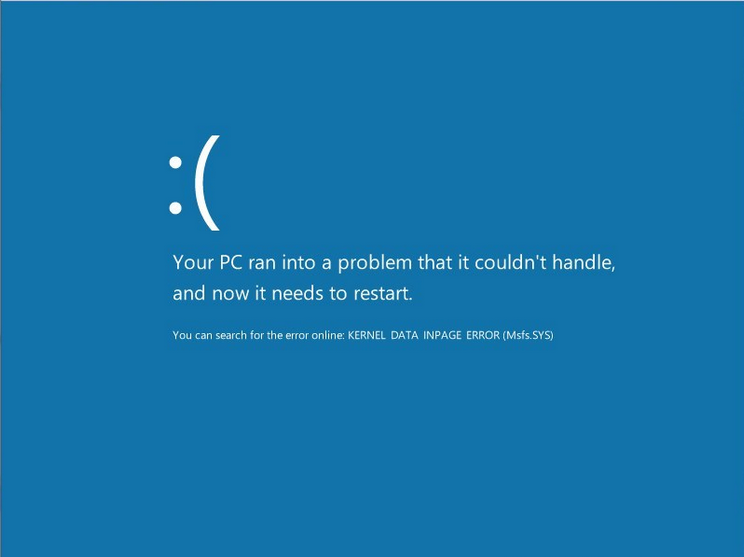
Fortunately, this one has two very simple solutions, and if they don’t work, you simply have defective hardware. The solutions are below, but first, I’ll give you a few screenshots of what this error should look like.

This error as seen in Windows 8.

This error as seen in older versions of Windows.
The first possible solution is that your hard drive is the one causing the problem. To check if your hard drive is causing the issue in Windows XP, Vista or 7 , open a Windows Search (Windows Key + F), and type in ‘chkdsk’. Execute it — you can’t run a disk check while actively using Windows, but you can schedule it to start automatically the next time your computer is turned on. Wrap up what you need to and reboot — the disk check process can take a very long time, especially on large and/or slow hard drives. Watch some TV, play a game, take a nap … whatever you want to pass the time.

To do this in Windows 8 open Windows search (Windows Key + F) and then type ‘cmd’. Right click on the Command Prompt and choose “Run as Administrator” from the bar at the bottom of the screen. You will need to provide administrator authentication and then the Command Prompt windows will come up. Type the command “chkdsk C: /f /r /x” where ‘C:’ is the letter of the drive you wish to examine or repair. This is most commonly drive “C:” but it may be different in your case.

When the disk check is finished, your computer will automatically reboot. The disk check will fix any problems it encounters in your hard drive — and it likely will encounter some, even if they aren’t the cause of this particular error.

The second possible solution is that your RAM is causing the problem. RAM stands for Random Access Memory, and Windows makes constant usage of it to keep multiple applications running and keep tabs on important system data. To check if one of your RAM sticks is causing the problem, open another Windows Search and type in Memory Diagnostics Tool. What follows is similar to the disk check process — you can restart immediately to check your memory or you can schedule it for the next time your computer is on. Save what you need to and run the Memory Diagnostic.

After both of these processes are finished, you should be able to determine what’s causing the problem. If the Memory Diagnostic doesn’t flag any problems with your RAM, then your hard drive is the culprit. If, however, it does find issues, it means you have defective RAM that needs to be removed or replaced.
If using a laptop — or you simply don’t know how to replace RAM — call your manufacturer or a technician to help you from here. You’ve done your part.